
Getting Started
This is a simple guide on how to get started with OnlyOneMessage, from inviting the bot to what to do next, in complete detail.
OnlyOneMessage is a utility bot that allows you to increase the default 6-hour slowmode built into Discord to a cooldown of your choice, up to forever.
1. Invite OnlyOneMessage
Invite OnlyOneMessage using this link .
OnlyOneMessage will ask you for these permissions when inviting it:
- Manage Channels - Allows OnlyOneMessage to assign roles to channels.
- Manage Roles - Allows OnlyOneMessage to create blacklist roles for channels.
- Manage Threads - Used for denying permissions for a created blacklist role.
- Manage Webhooks - Allows OnlyOneMessage to manage logging for your server.
- Other miscellaneous permissions which you can find in the menu
2. Use /addchannel
/addchannel will add a channel for OnlyOneMessage to use and configure.
Select a cooldown from 12 hours up to forever, and OnlyOneMessage will take care of the rest.
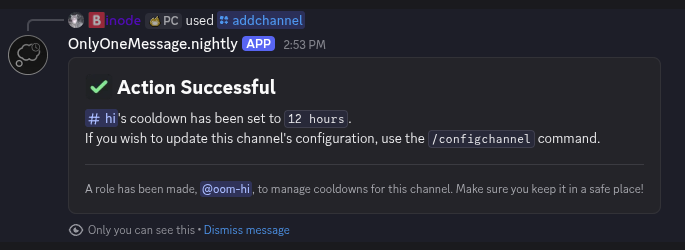
The response embed after running /addchannel.
For every channel setup under OnlyOneMessage, a new role will be made. This role is used to prevent members from sending messages in the channel during their cooldown, and is automatically assigned and removed by the bot.
Remember to keep the generated role in a safe place, as deleting the role will break your setup.
If you have accidentally deleted the role, you can run /addchannel again to fix it.
3. Customization
You can add more channels with the /addchannel command.
Alternatively, you can use the /configchannel command to modify existing channel settings.
Use the /removechannel command to remove a channel from OnlyOneMessage's configuration.
Have fun with OnlyOneMessage! Feel free to join the Discord server and leave a review on our top.gg page.
Using /removechannel will not delete the specified channel, but formerly did pre-v2.0.